How to Download All Attachments from a Trello Card
Trello has no native button for card-level bulk download. Here are the seven methods that actually work, ranked by speed and effort.
Short answer: Trello does not give you a one-click way to grab every attachment on a card. The fastest method is the Trello Attachment Downloader browser extension, which adds a Download All as ZIP button to every card - one click, no setup, no API key. The Attachments Downloader Power-Up, Trello’s Premium workspace export, custom API scripts, and manual downloads are all viable but slower, more technical, or require a paid Trello plan.
 Add to Chrome - Free
Comparison at a glance
| Method | Time for 20 files | Setup | Files in one ZIP | Hidden attachments | Cost |
|---|---|---|---|---|---|
| Manual one-by-one | ~5–10 min | None | No | Manual expand | Free |
| Trello board JSON export | ~15–30 min | Moderate | No (URLs only) | Yes | Free |
| Trello workspace export (raw attachments) | ~5 min (whole workspace) | Workspace admin | Yes (whole workspace) | Yes | Trello Premium ($10/user/mo) |
| Custom Trello API script | ~1–2 hrs first time | High (code + API key) | Yes (if coded) | Yes | Free |
| Attachments Downloader Power-Up | ~30 sec | Install per board | Yes | Yes | Free up to 100 attachments, then credit-based ($10 / 4,000) |
| Browser extension (recommended) | ~10 seconds | One click | Yes | Auto-expanded | Free / $4–5 mo Pro |
| Third-party board backup service | Varies (whole workspace) | Account signup | Yes | Yes | $25–90+ /mo |
Method 1: Download attachments manually, one at a time
The default Trello experience. Open the card, click each attachment, and save it. If the card has more than a handful of files, click Show more to expand the list first.
Pros
- Zero setup, works on any device
- Free, no third-party tools
Cons
- Each file is a separate click and a separate save dialog
- You have to remember to expand Show more
- Files end up as a loose pile in your Downloads folder, not a ZIP
- Painful for cards with 10+ attachments
Use this if: the card has only a few attachments and you only do this occasionally.
Method 2: Use Trello’s built-in board export (JSON)
Trello lets every board member export a board as JSON for free. The export includes every attachment’s URL and metadata - but not the files themselves. You still need to fetch each file from its URL manually or with a downloader.
To export a board: open the board, click Show menu › More › Print and Export › Export as JSON. Then parse the JSON and either click through every url field or feed the URLs into a tool like wget. CSV export of a single board requires a Trello Premium workspace.
Pros
- Native to Trello, no third-party tools
- Per-board JSON export is free for all plans
- Captures the whole board at once, not just one card
Cons
- The export does not contain the files - only links
- You still need a way to download every URL
- Authenticated attachment URLs require an active Trello session to fetch
- Overkill if you only want one card’s files
Use this if: you need a structured backup of an entire board and you’re comfortable scripting the file fetch yourself.
Method 3: Trello Premium workspace export with raw attachments
Trello Premium includes a workspace-level export with an Include raw attachments option. Attachments are bundled into a ZIP alongside the JSON export. This is the only official Trello method that produces actual attachment files, but it operates at the workspace level - not per card.
Pros
- Official, supported by Atlassian
- Includes the raw files, not just URLs
- Captures every board in the workspace in one shot
Cons
- Requires Trello Premium (currently $10/user/month)
- Workspace-only - you can’t scope it to a single card or board
- Triggered by a workspace admin, not an individual user
- Massive overhead if you just want the files off one card
Use this if: you’re a workspace admin doing a full Premium-tier backup.
Method 4: Write a script against the Trello REST API
If you are comfortable with code, you can hit the Trello REST API to list a card’s attachments and download each one. You will need an API key and a user token, and you will need to handle authentication on file URLs (Trello attachments are session-protected).
A minimal Node or Python script using GET /1/cards/{id}/attachments takes about an hour to write the first time, and around 30 lines of code if you reuse it.
Pros
- Fully automatable - great for recurring backups
- Custom output: rename, sort, sync to S3, anything
Cons
- Requires programming knowledge
- Managing API keys and tokens is friction
- Authenticated download URLs change occasionally and break scripts
- Not realistic for non-developer team members
Use this if: you are a developer building an automation pipeline.
Method 5: Install the Attachments Downloader Power-Up
The Attachments Downloader Power-Up adds a board-level button to download attachments from a whole board or a specific list. A workspace admin enables it on each board where you want it. Pricing is credit-based: each attachment downloaded costs one credit, with 100 free credits to start and paid packs (e.g. $10 for 4,000 credits).
Pros
- Native Trello integration - lives inside the board UI
- Works at board or list level, not just one card
- Free for the first 100 attachments
Cons
- Has to be installed on each board you want to use it on, by a workspace admin
- Credit-based pricing means heavy users pay per file, not flat-rate
- Power-Up enablement counts against Trello’s plan limits in some workspaces
- No card-level button by default
Use this if: you want a Trello-native solution scoped to a specific board, and your usage is light or predictable.
Method 6: Use a browser extension (recommended)
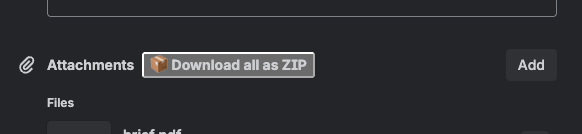
Trello Attachment Downloader is a free browser extension for Chrome, Edge, and Firefox that adds a Download All as ZIP button to every Trello card. One click, every attachment bundled into a single ZIP.
It uses your existing Trello session, so there is no API key, no token, no external software. Hidden attachments behind Show more are auto-expanded and included. The Pro tier names the ZIP after the card title; the free tier uses a generic filename.
Pros
- One click, ~10 seconds for a card of any size
- No API key, no setup, no signup, no per-board install
- Works on every card across every board automatically
- Files arrive as a single ZIP (with smart naming on Pro)
- Hidden attachments included automatically
- Files never touch a third-party server - downloaded directly in your browser
Cons
- Browser-only (no CLI)
- Free tier has a 10-downloads-per-month cap; unlimited is $4–5/mo
Use this if: you want the fastest path from “I need these files” to “I have these files.”
Method 7: Third-party board backup services
Services like Pro Backup, Rewind, and BackupLABS run scheduled backups of an entire Trello workspace, including attachments. They are designed for compliance and disaster recovery, not for grabbing files off one card.
Pros
- Automated, scheduled, full-workspace coverage
- Versioning and point-in-time restore
Cons
- Pricing typically $25–90+/month depending on storage and tier
- Requires connecting your Trello workspace to a third party
- Massive overkill for one card’s attachments
Use this if: your org needs scheduled, audited backups of entire Trello workspaces.
What about a whole board, or a whole workspace?
Everything above is card-scoped, because that is where Trello’s gap is widest. If you need more than one card, the honest answer depends on how much you need and what plan you are on.
There is no way to export a single board with its attachment files. The per-board JSON export gives you attachment URLs, not the files behind them. The only official route to the actual files is the workspace-level export with Include raw attachments, which needs Trello Premium and workspace admin rights, and it exports everything at once rather than the one board you wanted. This is a known gap, not an oversight on your side: the request to export an individual board including raw attachments has been open on Atlassian’s public tracker as TRELLO-1377 since 2020.
So, by scope:
- A few cards: open each one and click Download All as ZIP. Two or three clicks per card, no plan requirements, nothing to set up.
- One board, regularly: a board-level Power-Up is the closest fit, though the common ones price per megabyte of downloaded data or per member per month.
- The entire workspace, once: Trello Premium’s workspace export with raw attachments, if you have admin rights.
- The entire workspace, on a schedule: a backup service such as Pro Backup, Rewind, or BackupLABS, priced for compliance rather than for one-off retrieval.
One case worth calling out separately: if you are leaving Trello for Notion, Asana, monday.com, or ClickUp, check what the importer actually carries over before you cancel. Several of them migrate cards, lists, and comments but silently leave attachments behind as links pointing back at a workspace you are about to lose access to. Pulling the files down first is cheap insurance.
Just want the files? Install the extension.
Free for up to 10 downloads per month. No signup, no API key.
Add to Chrome - FreeFrequently asked questions
Does Trello let you download all attachments at once?
Not from a single card with a native button. Trello has no built-in card-level bulk download. You either click each attachment individually, run a Trello Premium workspace export with the Include raw attachments option, write a script against the Trello API, install the Attachments Downloader Power-Up on the board, or install a browser extension that adds a one-click Download All as ZIP button.
Does Trello’s board export include attachment files?
By default, no. Trello’s standard per-board JSON export contains attachment URLs and metadata but not the files. Trello Premium adds a workspace-level export option called Include raw attachments that bundles the actual files into a ZIP, but it exports the entire workspace, not one card.
What is the fastest way to download all attachments from a Trello card?
A browser extension that adds a Download All as ZIP button to the card. It takes one click and works for cards with any number of attachments, including hidden ones behind Show more.
Can I download Trello attachments without an API key?
Yes. Browser extensions like Trello Attachment Downloader use your existing Trello session, so no API key, token, or external software is required.
Are attachments hidden behind “Show more” downloaded too?
With the manual method you have to expand the list yourself. The Trello Attachment Downloader extension automatically expands the hidden list and includes every attachment in the ZIP.
Is it safe to use a browser extension for this?
Trello Attachment Downloader downloads files directly in your browser using your existing Trello session. Files never pass through any third-party server, and the extension does not store personal data. See the privacy policy for details.
Can I download attachments from an entire Trello board, not just one card?
Not in one step, and not through Trello either: there is no export that produces a single board’s attachment files. For a handful of cards, opening each and clicking Download All as ZIP is still the fastest path. For a whole workspace, Trello Premium’s export with Include raw attachments covers it if you are an admin, and for recurring backups a dedicated backup service is the right tool. See the board and workspace section for the full breakdown.